
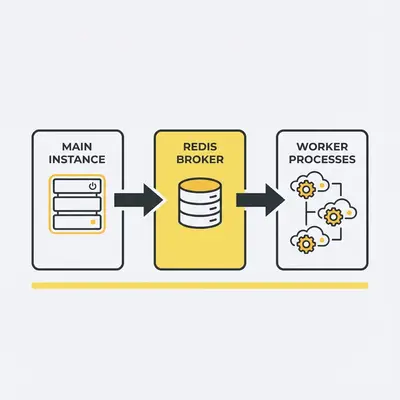
n8n queue mode splits the editor from execution. The main instance takes webhooks and timers. Redis holds a queue. Worker processes run the jobs. Use it when one n8n process is both the UI and the runner, and load makes the editor slow or webhooks time out. Official setup lives in n8n's Enable queue mode guide.
Key Insight: Queue mode is about isolation, not magic speed. The main instance can keep receiving webhooks while workers run jobs. Reliability comes from that split, plus a database that can take the extra writes.
This guide covers when queue mode is worth Redis, how workers scale, and five setup mistakes. You will know whether to stay on concurrency limits in regular mode or turn on EXECUTIONS_MODE=queue.
What n8n Queue Mode Is (Plain English)
Queue mode changes how n8n processes workflows. In regular mode, everything runs on one instance: the web interface, workflow execution, webhook handling, and database queries all compete for the same resources.
In queue mode, you split responsibilities:
- Main instance: Handles the web interface, receives webhooks and triggers, creates execution records, but doesn't run workflows.
- Redis: Acts as the message broker, maintaining a queue of pending executions.
- Workers: Separate n8n processes that pull jobs from Redis and execute workflows independently.
Here's how it works in practice, according to n8n's Enable queue mode documentation:
- The main instance receives a webhook or timer trigger and generates a workflow execution ID.
- It passes the execution ID to Redis, which adds it to the queue.
- An available worker picks up the job from Redis.
- The worker fetches workflow details from the database and executes it.
- After completion, the worker writes results to the database and notifies Redis.
- Redis notifies the main instance that execution finished.
Each worker is its own Node.js instance, capable of handling multiple simultaneous workflow executions due to high IOPS (input-output operations per second). This architecture lets you scale horizontally: add more workers when load increases, remove them when demand drops.
Reality Check: Queue mode requires Redis. If you're self-hosting, you'll need to set up and maintain a Redis instance. For small businesses running a few workflows, the added complexity might not be worth it. Concurrency limits in regular mode often solve the problem.
Signs You Actually Need Queue Mode
Most teams don't need queue mode immediately. Here are the symptoms that indicate it's time to consider it:
Performance degradation under load:
- Workflows slow down during peak hours (e.g., 9 AM webhook rush, end-of-day batch processing).
- The n8n editor becomes unresponsive when multiple workflows run simultaneously.
- Execution times increase significantly when multiple workflows trigger at once.
Missed or timed-out webhooks:
- Webhooks fail because the main instance is busy executing workflows.
- External services report timeouts when calling your n8n webhooks.
- You see "execution queued" messages frequently in your execution logs.
Resource contention:
- CPU or memory usage spikes to 90%+ during normal operations.
- Database queries slow down because the main instance is executing workflows.
- You're hitting infrastructure limits (e.g., Docker container memory limits, VPS CPU caps).
Scaling requirements:
- You need to process hundreds of workflows per hour reliably.
- Multiple workflows compete for the same resources and cause bottlenecks.
- You want to separate execution from the web interface for better reliability.
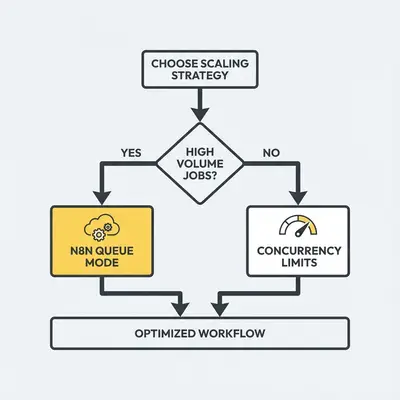
If you're experiencing 2-3 of these symptoms consistently, queue mode is likely worth the setup effort. If you only see occasional slowdowns, start with concurrency limits instead (we'll cover this below).
n8n Cloud vs Self-Hosted: What You Can Control
The decision between Cloud and self-hosted affects your queue mode options significantly.
n8n Cloud: Concurrency Limits and Queue Mode
n8n Cloud uses concurrency limits by default. Self-hosted concurrency is documented in Control concurrency. The Cloud product uses the same idea: production executions over the plan limit wait in FIFO order. n8n's Cloud docs are linked from that page as "Cloud concurrency."
Important details about Cloud concurrency:
- Concurrency control applies only to production executions (webhooks and triggers), not manual runs or test evaluations.
- You can't retry queued executions. Cancelling or deleting a queued execution removes it from the queue.
- On instance startup, n8n resumes queued executions up to the concurrency limit and re-enqueues the rest.
Queue mode on Cloud: Queue mode is available for n8n Cloud Enterprise plans only. To enable it, you must contact n8n directly. Regular Cloud plans (Starter, Pro) use automatic queuing with concurrency limits instead.
Self-Hosted: Full Control Over Queue Mode
Self-hosted n8n gives you complete control over queue mode setup. You can:
- Configure Redis connection settings.
- Scale workers horizontally by adding more worker processes.
- Set worker concurrency limits per worker (using the
--concurrencyflag). - Deploy workers on separate machines for better isolation.
Self-hosted concurrency control:
You can also use concurrency limits in regular mode (without queue mode) by setting the N8N_CONCURRENCY_PRODUCTION_LIMIT environment variable, as documented in n8n's self-hosted concurrency control guide. This queues executions when the limit is reached, similar to Cloud behavior, but without the worker architecture.
Decision Matrix: Cloud vs Self-Hosted for Queue Mode
| Factor | n8n Cloud | Self-Hosted |
|---|---|---|
| Queue mode availability | Enterprise plans only (contact n8n) | Available on all self-hosted instances |
| Setup complexity | Managed by n8n (Enterprise) | You manage Redis + workers |
| Scaling control | Limited to plan tiers | Full control (add/remove workers) |
| Cost | Higher monthly fees (Enterprise) | Infrastructure costs (VPS, Redis) |
| Best for | Teams wanting managed infrastructure | Teams with DevOps resources |
Pro Tip: If you're on n8n Cloud and hitting concurrency limits, evaluate whether upgrading to Enterprise (for queue mode) makes financial sense versus self-hosting. For small businesses, self-hosting with queue mode often costs less than Cloud Enterprise, but requires technical expertise.
How Scaling Works (In Practice)
Understanding how scaling works helps you make better decisions about worker count and infrastructure.
Concurrency vs Throughput
These terms get confused, but they're different:
- Concurrency: How many workflows run simultaneously at one moment.
- Throughput: How many workflows complete per hour/day.
Queue mode improves both, but in different ways. Adding workers increases concurrency (more workflows run at once). Optimizing workflow design and reducing bottlenecks increases throughput (more workflows finish per hour).
Worker Scaling Basics
Each worker can handle multiple concurrent executions. n8n documents the worker --concurrency flag with a default of 10, and recommends 5 or higher. Setting a very low value across many workers can exhaust the database connection pool.
Scaling workers: Start with one worker and watch queue depth. Add workers when jobs sit in Redis through peak hours. n8n's worker list in Settings > Workers is an Enterprise feature (self-hosted Enterprise, or Cloud Enterprise after contacting n8n). Without that UI, use worker health endpoints and Redis queue length.
Database Considerations
Queue mode doesn't eliminate database bottlenecks. It can make them worse if you are not careful. All workers read workflow definitions and write execution results to the same database. If your database can't handle the increased load, workers will wait for database queries, reducing the benefit of queue mode.
Database optimization tips:
- Use PostgreSQL (recommended by n8n for production) instead of SQLite.
- Add indexes on frequently queried fields (e.g.,
execution_entity.startedAt,execution_entity.status). - Monitor database connection pool usage and increase pool size if needed.
- Consider read replicas for high-read scenarios (advanced setup).
Common Pitfalls (And How to Avoid Them)
Most queue mode problems come from misunderstanding how it works or skipping setup steps.
Pitfall 1: Confusing Concurrency with Throughput
The mistake: Setting worker concurrency to 50 and expecting 50x faster processing.
The reality: High concurrency can overwhelm your database or external APIs, causing timeouts and failures. n8n recommends worker concurrency of 5 or higher, not a huge worker count with tiny concurrency.
How to avoid it: Start near n8n's documented default (--concurrency=10) or 5, then change only while watching error rates and database connections.
Pitfall 2: Database Bottlenecks
The mistake: Adding 10 workers without optimizing the database, then wondering why performance doesn't improve.
The reality: Workers compete for database connections and query time. If your database is the bottleneck, adding workers makes it worse.
How to avoid it: Monitor database metrics (query time, connection pool usage, slow queries) before and after enabling queue mode. Optimize database queries and add indexes as needed. Consider PostgreSQL connection pooling (e.g., PgBouncer) for high-concurrency scenarios.
Pitfall 3: Binary Data Storage Limitations
The mistake: Enabling queue mode with file system binary storage, then discovering workflows fail when processing files.
The reality: According to n8n's Enable queue mode documentation, n8n does not support queue mode with binary data storage in the filesystem. If workflows need to persist binary data, use S3 external storage (or another mode every instance can read). n8n's binary data page also notes filesystem is unsupported in queue mode.
How to avoid it: Before enabling queue mode, audit workflows for file and image nodes. Configure shared binary storage first. This is a hard requirement. Workflows that need persisted binaries will fail without it.
Pitfall 4: Expecting Queued Executions to Be Retryable
The mistake: Assuming you can retry a queued execution if it fails.
The reality: As noted in n8n's concurrency documentation, you can't retry queued executions. Cancelling or deleting a queued execution removes it from the queue permanently. If a queued execution fails, you must trigger a new execution manually or via your workflow's error handling.
How to avoid it: Design workflows with robust error handling and retry logic at the node level, not the execution level. Use error workflows to catch failures and trigger new executions when needed.
Pitfall 5: Not Monitoring Queue Depth
The mistake: Enabling queue mode and assuming everything works without monitoring.
The reality: Queue depth (number of pending executions) tells you if you have enough workers. If queue depth grows continuously, you need more workers or faster workflows.
How to avoid it: Set up monitoring for queue depth, worker status, and execution times. Use Settings > Workers only if your plan includes it. Otherwise use Redis queue length, worker /healthz endpoints (when QUEUE_HEALTH_CHECK_ACTIVE is on), and Prometheus if you already collect metrics. Alert when pending jobs stay high through a full peak window.
Quick Win: Before enabling queue mode, test with a single worker and monitor for 24-48 hours. This helps you establish baseline metrics and identify bottlenecks before scaling.
A "Safe Rollout" Checklist for SMB Teams
If you're enabling queue mode for the first time, follow this step-by-step checklist to avoid common mistakes.
Step 1: Audit Your Current Setup
Before making changes, document your current state:
- Count active workflows and average executions per day.
- Measure current execution times and identify slow workflows.
- Review database performance (query times, connection pool usage).
- Check for binary data operations that require S3 storage.
Time estimate: 2-4 hours for thorough audit.
Step 2: Set Up Redis (Self-Hosted Only)
If you're self-hosting, set up Redis before enabling queue mode:
- Install Redis (Docker recommended:
docker run -d -p 6379:6379 redis:alpine). - Configure Redis persistence if you need durability (RDB or AOF).
- Test Redis connection from your n8n instance.
- Set up Redis monitoring (Redis CLI
INFOcommand or external tools).
Time estimate: 1-2 hours for setup and testing.
Step 3: Configure S3 Storage (If Needed)
If any workflows process binary data:
- Set up S3 bucket (AWS S3, DigitalOcean Spaces, or compatible service).
- Configure n8n environment variables for shared binary storage (
N8N_DEFAULT_BINARY_DATA_MODEand the matching S3 or Azure settings). See Handle binary data. - Test file upload/download operations.
- Migrate existing binary data if needed.
Time estimate: 2-3 hours for setup and migration.
Step 4: Enable Queue Mode on Main Instance
Configure the main instance for queue mode:
- Set
EXECUTIONS_MODE=queueenvironment variable. - Configure Redis connection (
QUEUE_BULL_REDIS_HOST,QUEUE_BULL_REDIS_PORT, etc.). - Set encryption key (shared with all workers).
- Restart main instance and verify it connects to Redis.
Time estimate: 30 minutes for configuration, 15 minutes for testing.
Step 5: Start with One Worker
Begin with a single worker to establish baseline:
- Start worker process (
./packages/cli/bin/n8n workeror Docker equivalent). - Verify the worker process is up (health endpoint or process list). Settings > Workers needs Enterprise.
- Run test workflows and monitor execution times.
- Check Redis queue depth and worker activity.
Time estimate: 1 hour for setup and initial testing.
Step 6: Monitor for 24-48 Hours
Before adding more workers, monitor the single-worker setup:
- Track execution times (should be similar to regular mode).
- Monitor queue depth (should stay low with one worker).
- Check database performance (query times, connection usage).
- Review error rates (should not increase).
Time estimate: Ongoing monitoring, 15-30 minutes daily review.
Step 7: Scale Workers Gradually
Add workers based on actual demand:
- If queue depth consistently exceeds 10-20 executions, add a second worker.
- Monitor for another 24-48 hours before adding more.
- Scale based on peak load, not average load.
- Stop scaling when queue depth stays near zero during peak hours.
Time estimate: 1-2 hours per worker addition, plus monitoring time.
Step 8: Set Up Production Monitoring
Once stable, set up ongoing monitoring:
- Configure alerts for queue depth thresholds.
- Monitor worker health (Settings > Workers on Enterprise, otherwise health checks and logs).
- Track execution success rates and error patterns.
- Set up database performance monitoring.
Time estimate: 2-4 hours for comprehensive monitoring setup.
Reality Check: Most teams rush through steps 5-7 and add too many workers too quickly. This wastes resources and can cause database bottlenecks. Take time to monitor and scale gradually. You will catch issues earlier and optimize better.
When Queue Mode Isn't the Answer
Queue mode solves specific problems, but it's not always the right solution.
Use concurrency limits instead if:
- You have occasional spikes but normal load is manageable.
- You're on n8n Cloud (non-Enterprise) and can't access queue mode.
- You want simplicity over scalability.
- Your workflows are mostly lightweight (API calls, simple data transformations).
Fix workflow design first if:
- Workflows are slow due to inefficient logic (not resource contention).
- You're processing large datasets without batching.
- Workflows have unnecessary sequential steps that could run in parallel.
Consider infrastructure upgrades if:
- A single instance handles your load but needs more CPU/memory.
- Database is the bottleneck (upgrade database before adding workers).
- Network latency is the issue (deploy closer to external services).
For more on optimizing workflow design, see our guide on improving n8n workflow performance. For scaling considerations beyond queue mode, check out our scaling issues guide.
Conclusion
Queue mode is a powerful scaling solution, but it requires careful setup and monitoring. Most small businesses don't need it immediately. Concurrency limits often solve performance issues without the added complexity.
If you're experiencing consistent performance degradation, missed webhooks, or resource contention, queue mode is worth the investment. Start with a single worker, monitor closely, and scale gradually based on actual demand. Avoid the common pitfalls: optimize your database first, configure S3 storage if needed, and don't confuse concurrency with throughput.
The key is understanding your actual needs. Queue mode adds infrastructure complexity (Redis, workers, monitoring) that pays off only when you need true horizontal scaling. For most small businesses, concurrency limits in regular mode provide the right balance of performance and simplicity.
n8n also says running queue mode with SQLite is not recommended. Use PostgreSQL for this architecture.
Ready to review whether queue mode fits your n8n host? Book an intro call.
FAQs
What is n8n queue mode and when should I use it?
Queue mode separates workflow execution from the main n8n instance using Redis and worker processes. Use it when you experience slow workflows, missed webhooks, or performance degradation under heavy load. It allows horizontal scaling by adding more workers.
Is queue mode available in n8n Cloud?
Queue mode is available for n8n Cloud Enterprise plans only. Contact n8n to enable it. Regular Cloud plans use concurrency limits with automatic queuing instead.
Do I need Redis for queue mode?
Yes, queue mode requires Redis as the message broker. The main instance passes execution IDs to Redis, which maintains the queue. Workers pick up jobs from Redis and process them independently.
What are the most common pitfalls with queue mode?
Common pitfalls include confusing concurrency with throughput, database bottlenecks, binary data storage (filesystem is unsupported in queue mode; use S3 or another shared store), and expecting queued executions to be retryable (they cannot be retried once queued).
How do I know if I need queue mode or just concurrency limits?
Start with concurrency limits if you have occasional spikes. Use queue mode if you need true horizontal scaling, have multiple workflows competing for resources, or want to separate execution from the main instance for better reliability.
Can I use queue mode with binary data storage?
n8n does not support queue mode with binary data storage in the filesystem. If your workflows need to persist binary data in queue mode, use S3 or another mode every instance can read, as documented in n8n binary data and queue-mode pages.
How many workers should I run?
Start with n8n worker defaults and official guidance: the worker --concurrency flag defaults to 10, and n8n recommends 5 or higher. Add workers when queue depth stays high during peak load, not by guessing a headcount.
About the Author
Kevin Michael Schindler is an AI Automation Expert at Evalics, helping small businesses and teams implement practical automation systems that save time and reduce operational drag.